To access the Claims Portal, you must enter your User ID and Password.
You will separately receive a Multi-Factor Authentication (MFA) verification email. Further information can be found within our step-by-step user guide. The user guide is located here: Multi-Factor Authentication (MFA) User Guide.
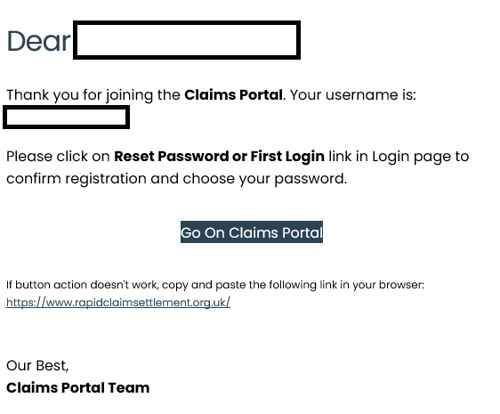
Click on the link in the email.
Click on Forgot your password? or first login?
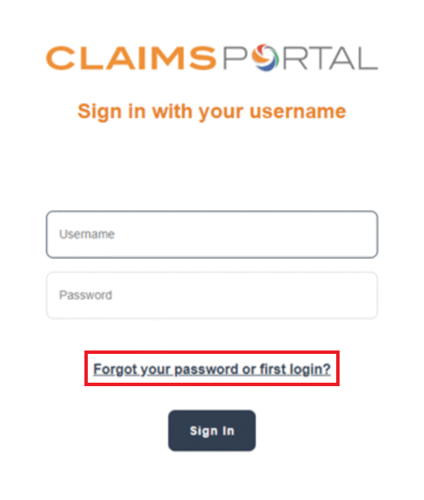
This will take you to the login page for the for Claims Portal. You will need to enter your User ID and email address.
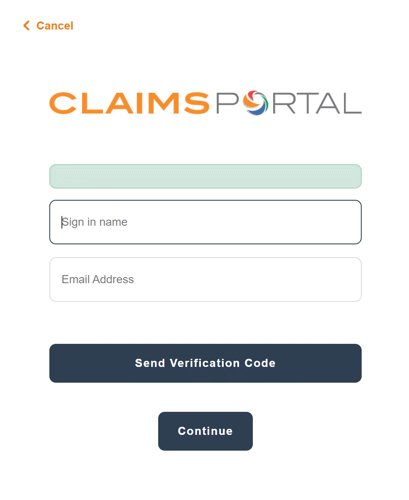
Click Send Verification code, and then continue.
Enter the OTP code received and press Verify Code and then click continue.

First login
The first time you log in, you will be asked to choose your password.
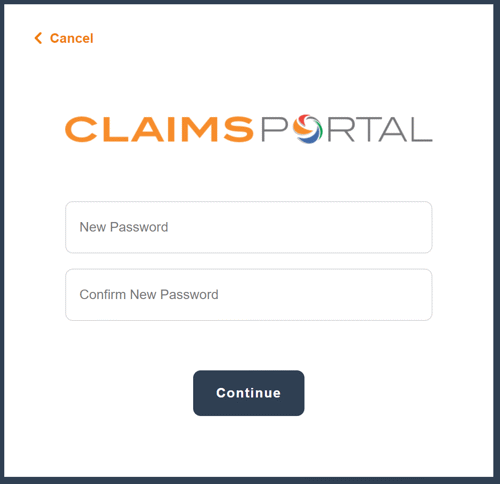
Enter your new password in the boxes provided and confirm.
About your User ID and Password
Essential details you need to know:
- The User ID is not case sensitive.
- The minimum length for a password will be 12 characters.
- The password must contain at least one special character.
- The acceptable special characters are: |!"£$€%&/=?^'*+@°#,;:.-_()
- The password must contain at least one number.
- The password must contain at least one uppercase letter and at least one lowercase letter.
- Any abbreviation of the word password including pwd or pswd will not be accepted and your password will not save.
- It is not possible to use your name as a password.
- It is not possible to use your organisation ID as a password.
- It is not possible to use your user ID as a password.
- It is not possible to reuse any of your previous passwords.
If your User ID is disabled, you will need to ask the Administrator to reset the password for you.
Authenticator App
Once you have set up your password, you will be given the option to log in using email MFA, or the Authenticator app on your mobile phone.
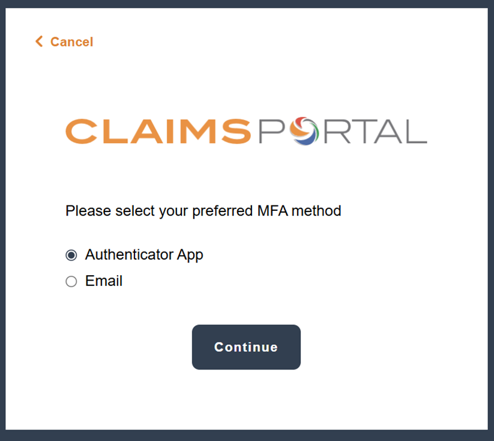
If you select the Authenticator app for the first time, a QR code will be generated, which you will need to scan on your authenticator app, such as Microsoft Authenticator, Google Authenticator or similar.
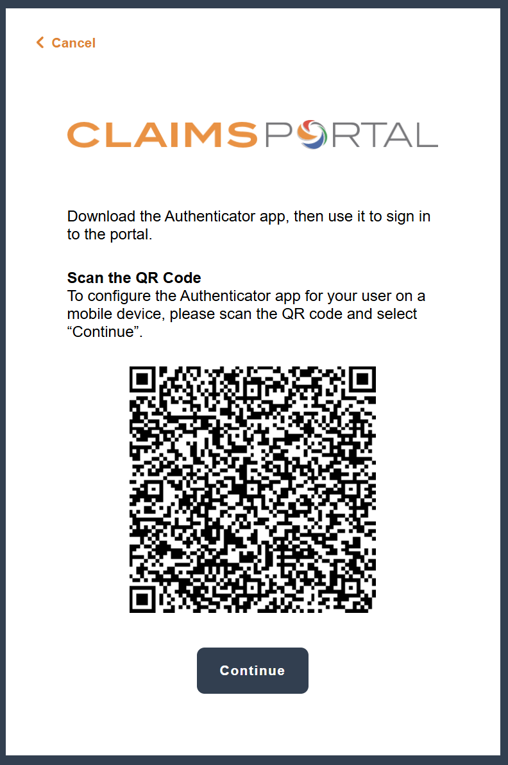
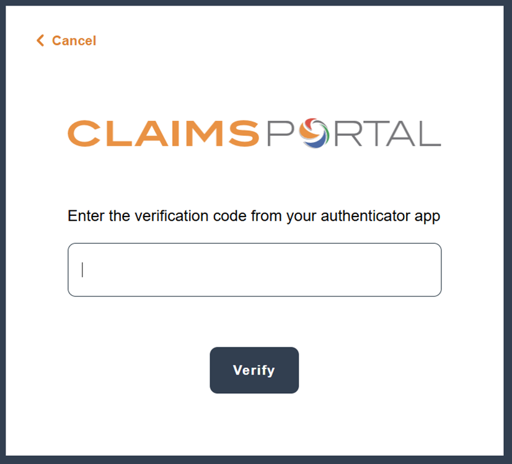
Once you have scanned the QR Code, a 6 digit code will be generated and shown on your app, you will then enter this on the next page, which will allow log in.
Disabling of User IDs and Passwords
Your User ID will become disabled if you haven’t used it for 90 days or after five incorrect login attempts.
When your User ID is disabled, it happens automatically, and only your organisation’s Administrator can re-enable it. At that point, you will be asked to change your password and to enter a new one, as shown above.
You will also need to change your password every 90 days. The system will prompt you to do that.
About MFA access
You will need to follow our User Guide to receive your one-time passcode for access to the Claims Portal. The user guide is located here: Multi-Factor Authentication (MFA) User Guide.
